Tutorial: Language selection – the program in 104 languages
From version 2.28, the Temia Business Portal and all programs derived from it (Client Manager, Inventory Manager, Expense Manager, Collections Manager, Time Tracking Manager, Employee Vacation Assistant, Employee Expense Account Assistant, Task Manager, Test Builder) are available in 104 languages – with a single installer per program for all languages.
• Choosing the language during installation
• Language selection at the first start
• Other scripts and PDF output
• Notes for existing customers
Choosing the language during installation
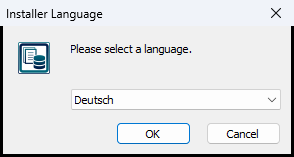
When the installer starts, a dialog asks for the language. The language chosen last time is preselected, otherwise the Windows language. The installation and later the program run in this language; the program name, the Start menu entry and the desktop shortcut also appear in this language.
Language selection at the first start
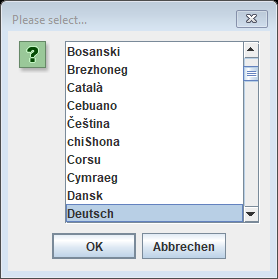
If the program is started without a given language (for example on macOS), it asks for the language at the first start. The list is sorted alphabetically by the native names of the languages (Deutsch, English, Español, Français …); the language of the operating system is preselected, otherwise English. The selected language is saved and used for all further starts.
Changing the language later
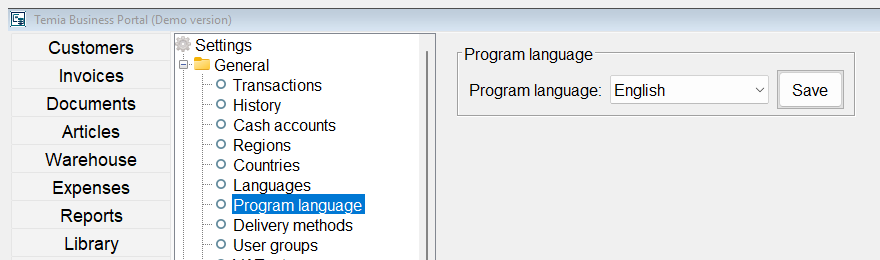
The language can be changed at any time under “Settings → General → Program language”. After “Save”, the new language applies from the next start of the program. Your data remains unchanged.
Right-to-left languages
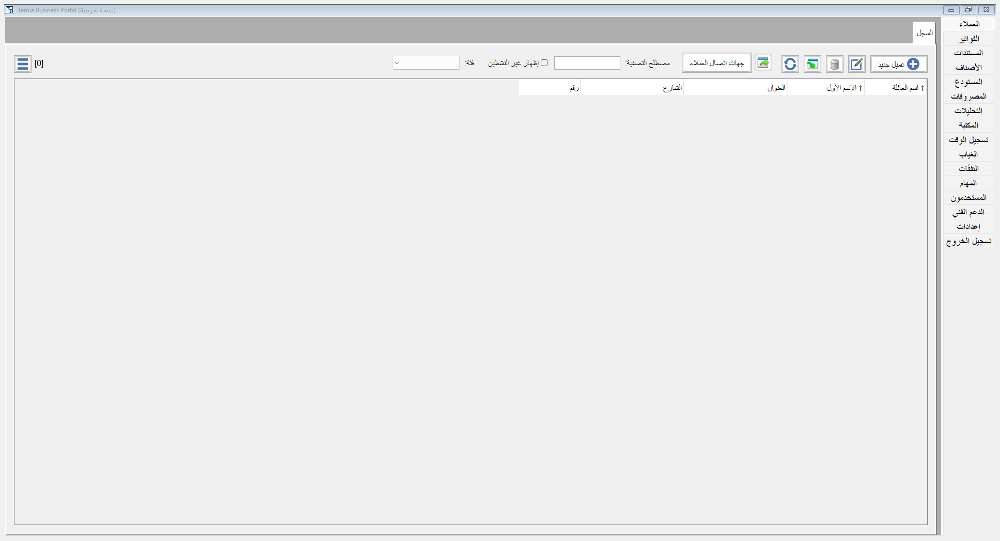
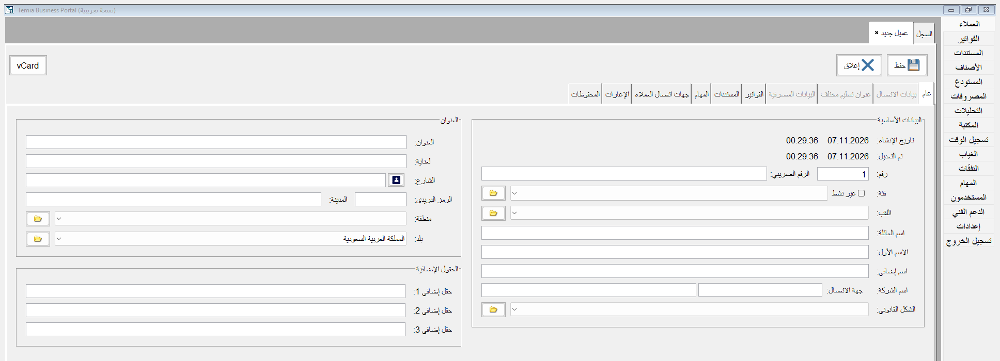
For Arabic, Urdu, Persian and Hebrew the whole user interface is mirrored: the navigation is on the right, labels are to the right of the input fields, tables start on the right.
Other scripts and PDF output
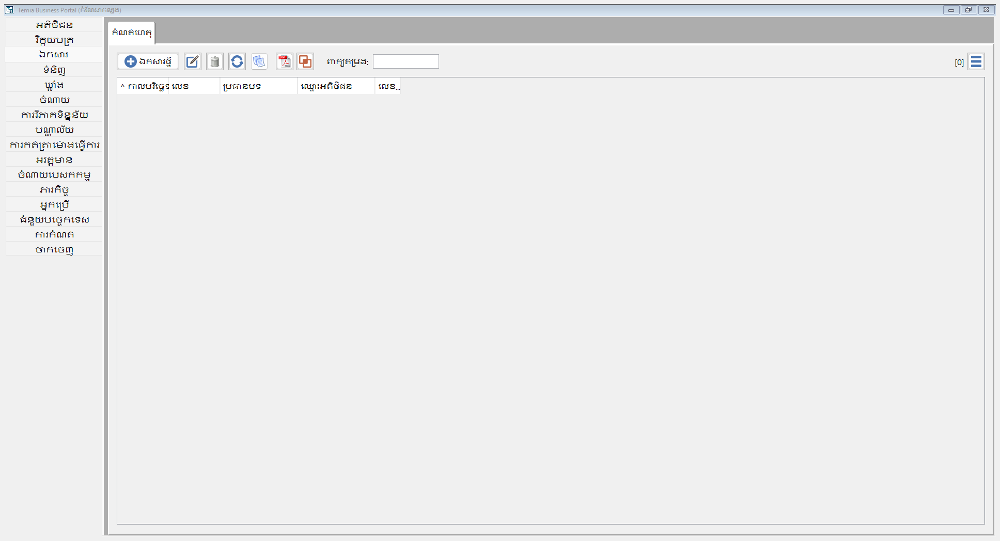
For languages such as Hindi, Bengali, Thai, Khmer, Burmese or Amharic the program automatically chooses a font that can display the characters. PDF documents (invoices, documents, print views) are also created with these fonts; Arabic and Hebrew texts appear correctly from right to left in the PDF.
Notes for existing customers
Until now there was a separate installer for each language. When updating an older version, choose the same language in the installer as before – the program is then installed into the same folder, and the shortcuts and the entry in “Apps & Features” stay the same. Your data is kept unchanged.
The texts of the new languages were translated by machine. We welcome suggestions for improvement in the forum.