
Platform: Windows
Link: Download DEMO-Version (Use free for 30 days)
Link: Download DEMO version as MSI package (for deployment in company networks)
Price: 19,99 €
Mac, iPhone, iPad
Tutorial 3: ISBN Search and Data Import
From version 2.01.30, searching for book data by ISBN works again. The internet service used until now has been shut down; the program now queries a free service, and you do not need to set anything up. Importing data from CSV files has also become easier.
Your own ISBNdb key (optional)
Importing data from a CSV file
Open "Search on the internet" in the "Extras" menu or click the barcode button in the journal. Enter the ISBN with or without hyphens and click "Search on the internet". Title, publisher, authors and further details appear in the window. Check the details and click "Add" to take the book into your collection. The data comes from Open Library (openlibrary.org); no key or registration is required. For some books, especially recent or regional ones, no data is available there; the program then reports that no data was found.
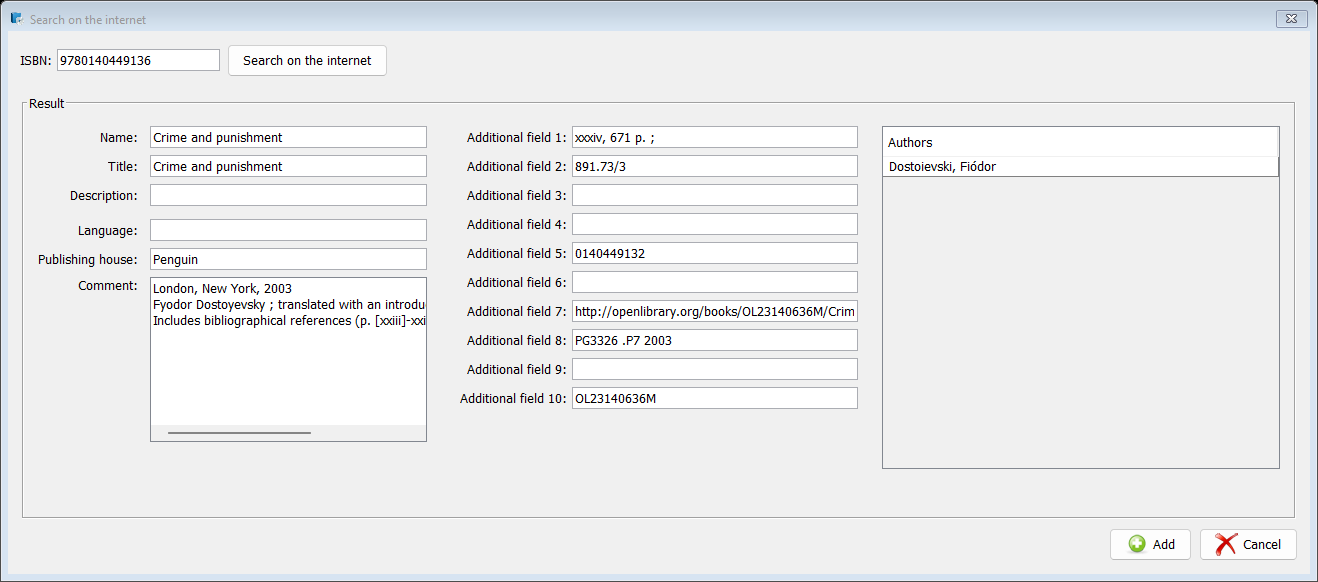
If you have a paid ISBNdb plan (isbndb.com), enter your key in the settings under "ISBN". The program then queries ISBNdb first, and Open Library only if nothing is found there. Keys of the old ISBNdb interface, which has been shut down, are no longer valid; in that case Open Library is used automatically.
In the "File" menu, choose "Data import" and then "My collection". After selecting the file you see the preview immediately and can continue with "Data import"; clicking "Refresh" is no longer necessary.
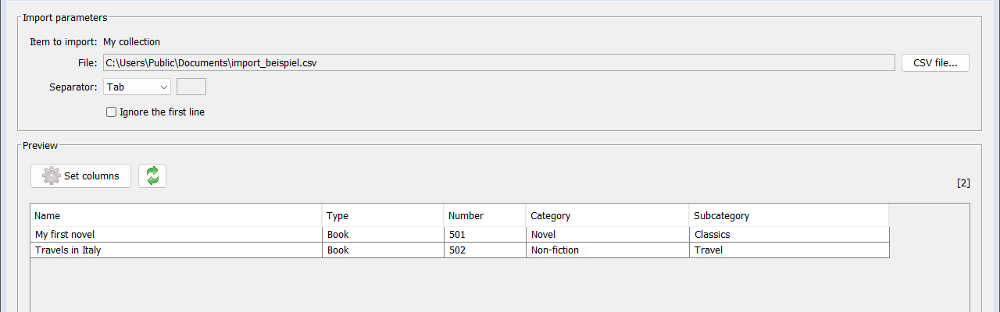
After the import, the list is reloaded automatically. Imported entries receive the current date and, if the file contains no status, the status "Available", just as when you create an entry by hand.

The Cancel button in the photo window is now labelled correctly. In right-to-left languages, wide forms open on the right-hand side, so labels and "Save" are visible straight away; brackets at the end of a line are correct in the PDF. Your data is preserved when you update.